Give your Oppy a polished Google profile photo
You can give your Oppy a more polished, recognizable identity on Google without creating and managing a separate Gmail inbox.
The simplest path is to use your Oppy’s existing email address, connect it to a Google Account, and upload a profile photo.
Why users do this
- Make your Oppy look more polished and trustworthy
- Keep branding consistent across touchpoints
- Avoid managing an extra inbox you do not need
- Use the email address your Oppy already sends from
The easiest path
Use your Oppy’s current email address when setting up the Google Account.
Example:
- If your Oppy sends from
sloane@getoppy.io, use that email address - You only need a separate Gmail inbox if you specifically want one
Step by step
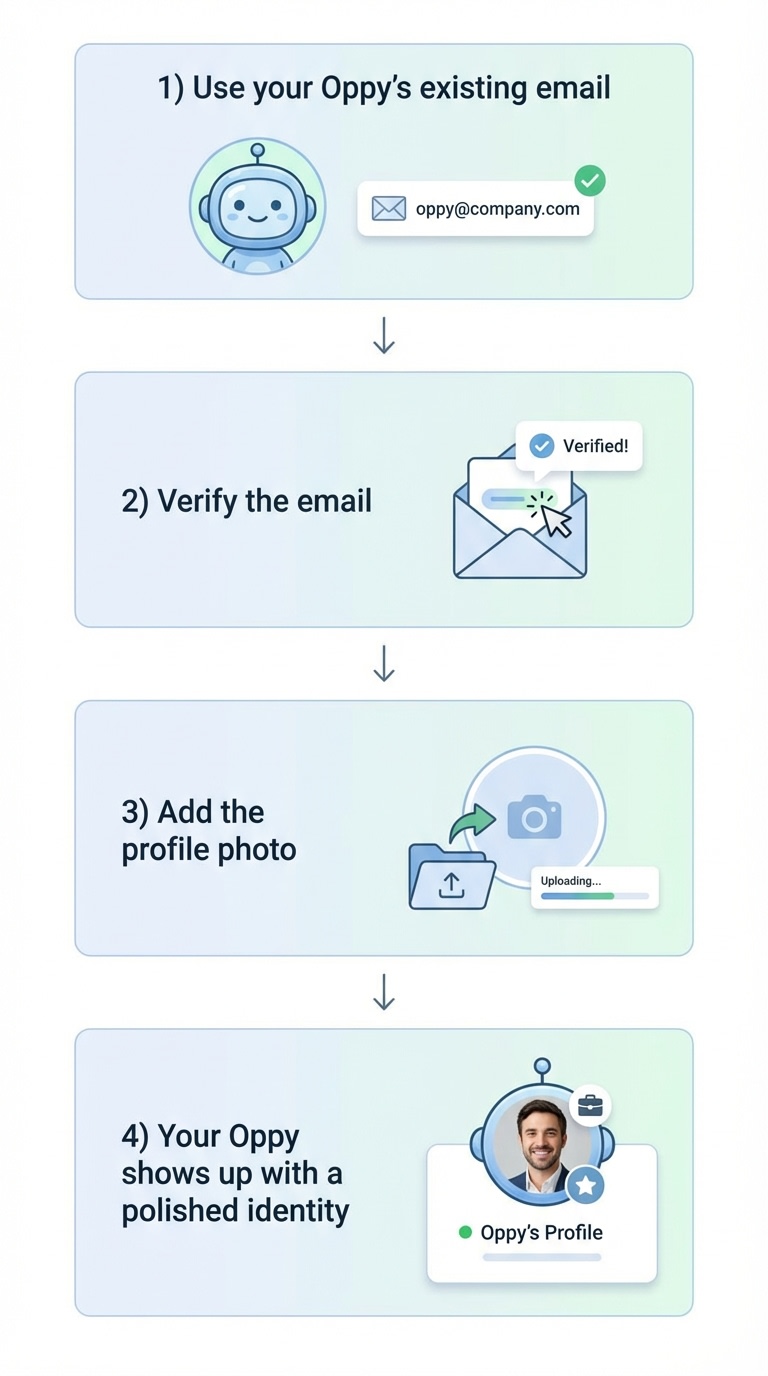
- Open Google Account setup.
- Choose the option to use your current email address.
- Enter the email address your Oppy already uses.
- Complete the email verification step.
- Finish setting up the account.
- Open the Google Account profile settings.
- Upload the headshot or profile image you want your Oppy to use.
- Save the photo and give Google a little time to update it across services.
Good to know
Sometimes Google may ask for an extra verification step before finishing setup. If that happens, complete the prompt and continue.
When you might want a separate Gmail inbox
Choose a separate Gmail inbox only if you want a completely separate mailbox and login for that Oppy.
Bottom line
If your goal is simply to give your Oppy a polished Google profile photo, using the Oppy’s existing email is usually the cleanest and easiest option.