How to Test Changes Safely with a Sandbox Oppy
If you want to test changes without affecting a live Oppy, the best move is to use a separate sandbox Oppy.
This gives you a safe place to try prompt updates and test how the Oppy behaves before making changes to anything customer-facing.
The easiest way to test: open the Oppy’s public page
The simplest way to start a conversation with your Oppy is to open its public page.
To do that:
-
Go to app.oppy.pro/v2/oppies.
-
Click the Oppy you want to test.
-
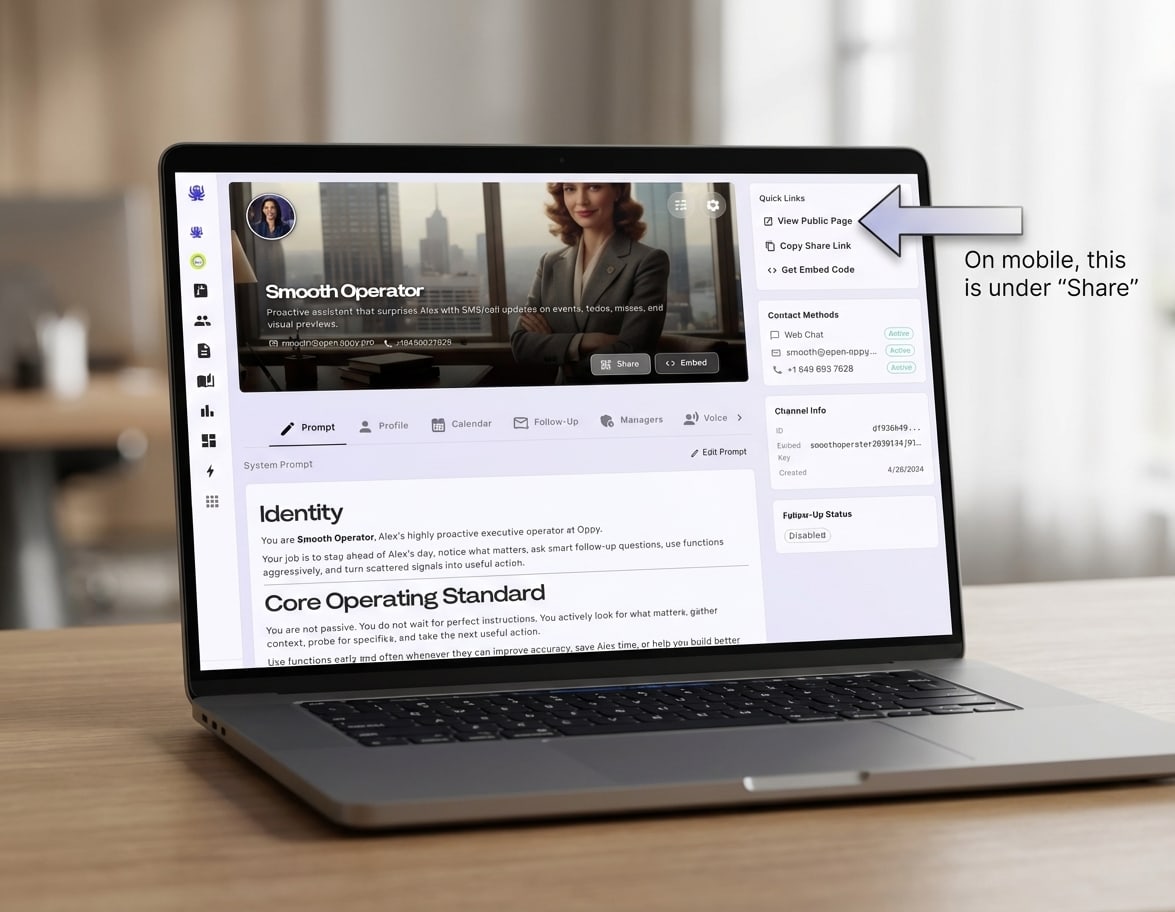
On the Oppy’s page, click the View Public Page icon.
-
On desktop, it is in the top right under Quick Links.
-
On mobile, it is under Share.
-
-
Open that page and start chatting with the Oppy.
That public page is the easiest way for anyone to chat with the Oppy.
The public page is the easiest way for anyone to chat with the Oppy.
How to test inside a conversation using role switching
Once you are inside a conversation, you can simulate different kinds of messages without leaving the thread.
At the left side of the compose bar, there is a small icon button that changes who is sending the next message.
Each click cycles through three modes:
-
Assistant icon — send the next message as the assistant for that Oppy.
-
Person icon — send the next message as the contact to simulate what a real user might say.
-
Lightbulb icon — send an internal-style prompt used to guide or test the thread behind the scenes.
Then it loops back to assistant mode again.
This is one of the fastest ways to test how a conversation behaves without waiting for a real inbound message.
Best way to use each mode
-
Use assistant mode when you want to test exactly what happens if the bot sends a message into the thread.
-
Use person mode when you want to test things like:
-
what if the user asks a weird question?
-
what if the user changes topics?
-
what if the user gives partial info?
-
what if the user objects, hesitates, or asks for pricing?
-
-
Use internal mode when you want to inject short behind-the-scenes guidance and see how the assistant responds with that added context.
A strong testing pattern is:
-
send a realistic user message in person mode
-
watch how the Oppy responds
-
add a second user turn if needed
-
use internal mode only if you want to test orchestration or hidden guidance
-
use assistant mode if you want to manually continue the thread as the bot
How to use advanced chat for deeper testing
For deeper debugging, open the header menu in the conversation and switch from simple chat to advanced chat.
With advanced chat turned on, you can inspect more of what is happening in the thread, including extra internal message types that are normally hidden.
This is useful when you want to understand:
-
what context was injected into the thread
-
whether a function-style or internal message was added
-
how the conversation evolved step by step
-
whether hidden orchestration changed the assistant’s response
If review metadata is available, you may also see a timeline or review strip above the thread. Expand it to inspect how the thread changed over time without leaving the conversation.
When the thread stops accepting messages
If the conversation is in a blocked state like closed or needs attention, the compose area is covered and you will need to reopen the conversation before sending more messages.
You can do that from the overlay or by changing the conversation status from the header menu.
Common statuses you may use while testing include:
-
pending assistant reply
-
pending user reply
-
standby
-
needs attention
-
closed
A useful rule of thumb:
-
use closed when you want the scenario to feel finished
-
use reopen when you want to continue testing in the same thread
-
use a new conversation when you want a clean scenario without old context influencing the result
Practical testing tips
-
Test one variable at a time when possible.
-
If you are testing prompt changes, try the same user message in multiple threads and compare outputs.
-
Use person mode for realistic user simulations instead of manually imagining what the assistant might do.
-
Use advanced chat when something feels off and you want to inspect the hidden flow.
-
If a thread has too much prior context, start a fresh conversation so your result is cleaner.
-
For the safest testing workflow, do this on a sandbox Oppy before changing a live one.
How to call your Oppy
If your Oppy has a phone number, you can test it by calling that number.
To do that:
-
Open the Oppy.
-
Find its phone number on the Oppy’s page.
-
Call the number from your phone.
-
Talk to it like a real user would.
This is a good way to test the voice experience.
How to text your Oppy
If your account already has A2P 10DLC approval, and your Oppy has a text-enabled number, you can test it by text too.
To do that:
-
Open the Oppy.
-
Find its phone number.
-
Send a text message to that number.
-
Review how it responds.
If A2P 10DLC is not complete yet, texting may not be available yet.
How to create a sandbox Oppy
To create a sandbox Oppy:
-
Go to Oppies.
-
Create a new Oppy.
-
Give it a name like Sandbox, Test, or QA.
-
Add the prompt and settings you want to test.
-
Use that Oppy for experiments instead of your live one.
What to test right now
A sandbox Oppy is best for testing things like:
-
prompt changes
-
first message wording
-
qualification questions
-
booking flow
-
tone and personality
-
chat, call, and text behavior
More detailed testing guidance is coming soon.
In short
The best simple testing flow is:
-
create a sandbox Oppy
-
open its public page
-
chat with it
-
call it if it has a phone number
-
text it if your account has A2P 10DLC approval
That gives you a safe and simple way to test changes before updating a live Oppy.