Knowledge Bases Guide
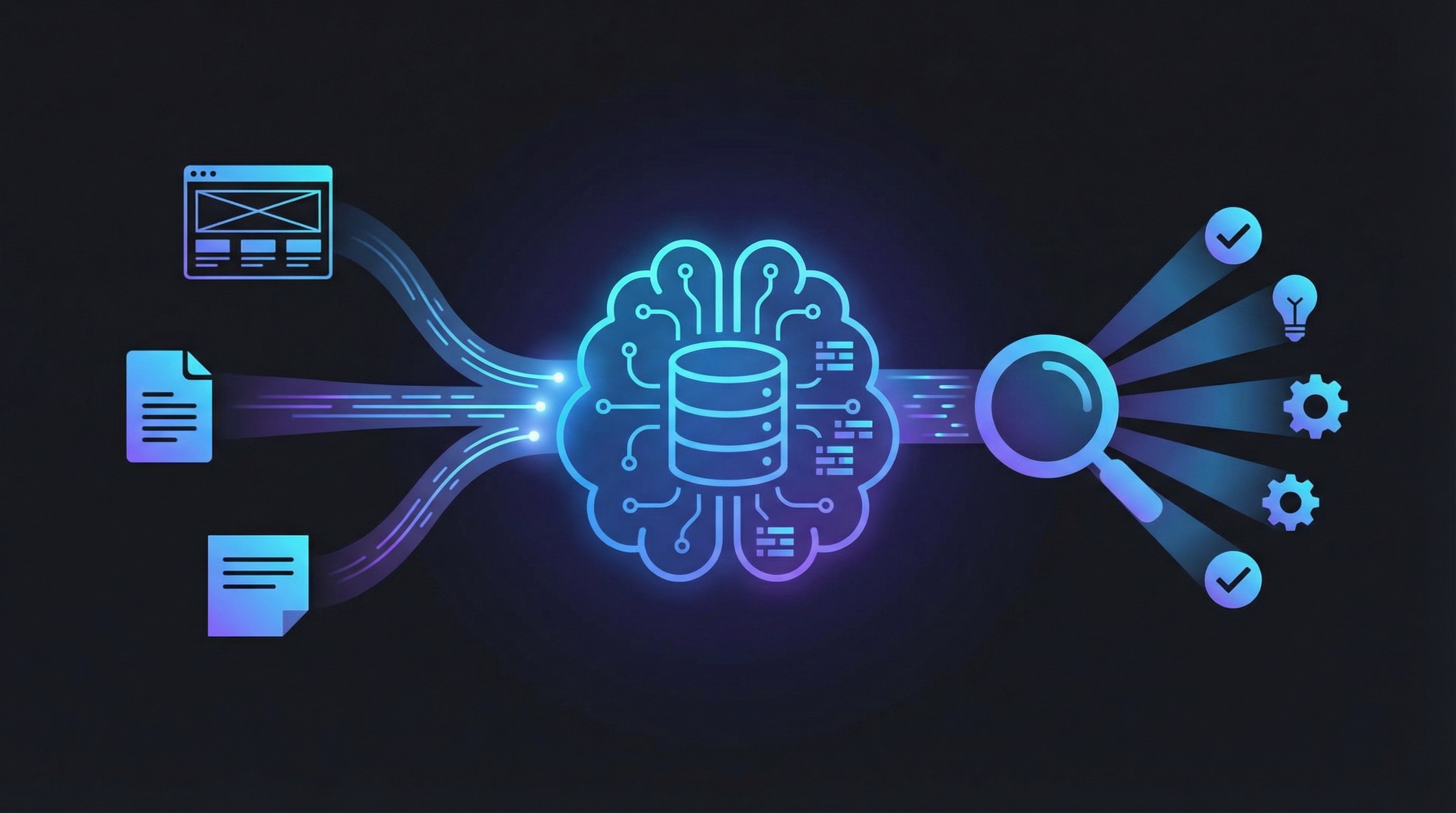
Knowledge bases are your Oppy’s brain — they store information that the AI searches when answering questions. Instead of putting everything into the prompt, you can give your Oppy access to extensive knowledge that it retrieves on demand.
Why Use Knowledge Bases?
- Prompts have limits — A prompt is like a job description (1-2 pages). A knowledge base is like an entire training manual.
- Dynamic information — Website content, product details, and FAQs change. Knowledge bases can be refreshed.
- Shared across Oppies — Train once, assign to multiple AI agents.
- Searchable — The AI uses semantic search to find the most relevant information for each question.
Accessing Knowledge Bases
Navigate to your knowledge bases at app.oppy.pro. From any Oppy’s settings page, you’ll see the Knowledge Base section, or access them directly from the side navigation.
Creating a Knowledge Base
Method 1: From a Website URL (Most Common)
- Go to your Oppy’s Knowledge Base section
- Click Add and paste your website URL
- The system automatically:
- Crawls your homepage
- Follows links to discover subpages (up to your configured depth)
- Finds social media profiles and other linked pages
- Extracts text content from each page
- Creates searchable chunks with AI-generated metadata
Configuration options:
- Max depth — How many levels deep to crawl (default: 3)
- Max pages — Maximum pages to index (default: 1,000)
- Crawl delay — Seconds between requests (default: 1)
- Positive keywords — Only index pages containing these terms
- Negative keywords — Skip pages containing these terms
Example: For Example Realty Group, crawling their main website built a knowledge base that could answer questions about golf courses, retirement communities, specific neighborhoods, and agent services — all without manually entering anything.
Method 2: From Documents
Upload files directly:
- PDF — Product brochures, sales playbooks, compliance docs
- TXT/MD — Plain text or markdown files
- CSV — Structured data (FAQ lists, product catalogs)
- HTML — Web page exports
Method 3: From Notes
Any note you create in Oppy can be synced to a knowledge base. This is powerful for:
- Manually written FAQs
- Meeting summaries that should inform the AI
- Custom rules or guidelines
Method 4: Via Account Concierge
Tell the concierge:
- “Create a knowledge base from our help documentation at help.cloze.com”
- “Add the page at luxuryepic.com/benefits to the knowledge base”
- “Index our entire website at yourcompany.com”
How the AI Uses Knowledge Bases
When someone asks your Oppy a question, the AI:
- Generates a search query based on the conversation context
- Searches the knowledge base using semantic similarity (not just keyword matching)
- Retrieves the top relevant chunks (typically 5-10 results)
- Uses that context along with the prompt and conversation history to generate a response
This means the AI can say things like “According to our benefits page, members get access to premium two-sided postcards at $25/month” — but only if that information is actually in the knowledge base.
Search Modes
- Semantic — Finds conceptually related content (default)
- Text — Traditional keyword matching
- Hybrid — Combines both for best results
Viewing & Managing Knowledge Base Content
Browsing Sources
View all indexed pages and documents in your knowledge base. For each source, you can see:
- URL or document name
- Status (processing, active, failed)
- When it was indexed
- How many chunks were created
Searching the Knowledge Base
Test what your Oppy knows by searching directly:
- Open the knowledge base
- Type a search query (e.g., “dog walking services” or “pricing for premium plan”)
- See the ranked results — these are exactly what the AI would see
This is invaluable for debugging. If the AI gives a wrong answer about your services, search the knowledge base to see what information it actually has access to.
What Gets Indexed (and What Doesn’t)
Good content to index:
- About pages, service descriptions, FAQs
- Blog posts, guides, how-to content
- Team pages, location information
- Product/service pricing (if public)
- Help documentation
Content that may not index well:
- Login-required pages (the crawler can’t sign in)
- Heavy JavaScript/SPA pages (content may not render)
- Frequently changing content like listings (goes stale quickly)
- Agent directories (changes too often)
Pro tip: If a page requires login, the knowledge base will look like it crawled successfully but the content will be empty or just the login form. Check the actual chunks to verify useful content was captured.
Excluding Content
If certain pages were indexed that you don’t want:
- Use negative keywords during crawl setup
- Manually delete individual sources after indexing
- Ask the concierge: “Remove all agent directory pages from the knowledge base”
Connecting Knowledge Bases to Oppies
Each Oppy can have one or more knowledge bases assigned. This lets you:
- Share a common base — All Oppies access company-wide info
- Add specialized bases — A support Oppy gets the help docs; a sales Oppy gets the pitch deck
- Separate concerns — Keep product knowledge separate from compliance knowledge
To assign: Go to the Oppy’s settings and select which knowledge bases it should have access to.
Refreshing & Updating
Manual Refresh
Re-crawl specific pages or the entire site when content changes.
Scheduled Refresh
Set up automatic re-crawling on a schedule (e.g., weekly).
Real-Time Search Fallback
For information that changes rapidly, you can configure your Oppy to browse the web in real time instead of (or in addition to) using the knowledge base. This is slower but always current.
In the prompt, you can write:
If someone asks about current listings or pricing, search the website
at luxuryepic.com/listings in real time rather than relying on stored knowledge.
Notes as Knowledge
Notes you create in Oppy (via the Notes section or by pressing N anywhere on the dashboard) can be added to knowledge bases:
- Create a note with useful information
- Click “Sync to Knowledge Base” and select which knowledge base
- The note’s content becomes searchable by the AI
This is perfect for:
- Adding corrections or clarifications the website doesn’t cover
- Documenting internal processes the AI should know
- Creating FAQ entries from common customer questions
Troubleshooting
Quick Diagnostic Checklist
When the AI gives a wrong or missing answer:
- Search the knowledge base directly — does the info exist in the chunks?
- Check the conversation’s advanced view — did the AI actually search the KB, or skip it?
- Test with the exact question the contact asked in the KB search bar
- Look at the prompt — is there a conflicting instruction overriding KB results?
- Check the source page — has the content changed since crawling?
This 5-step checklist resolves 90% of “the AI doesn’t know X” complaints.
“The AI doesn’t know about X”
- Search the knowledge base for that topic
- If no results: the content wasn’t indexed. Add the URL or create a note.
- If results exist but are wrong: the source page may have changed. Re-crawl it.
- If results exist and are correct: the prompt may be overriding. Check for conflicting instructions.
“The knowledge base crawled but seems empty”
- The page may require login (crawler can’t authenticate)
- The page may use heavy JavaScript that doesn’t render server-side
- Check the actual chunks to see what was captured
“Crawling is stuck at ‘processing’”
- Large sites take time (1,000 pages can take 15-30 minutes)
- If stuck for hours, contact support
- Check if the site has aggressive rate limiting or bot protection
“The AI gives outdated information”
- Knowledge bases are snapshots — they don’t auto-update
- Set up scheduled re-crawling for dynamic content
- Or configure the AI to do real-time web searches for time-sensitive info