Triggers & Proactive Features
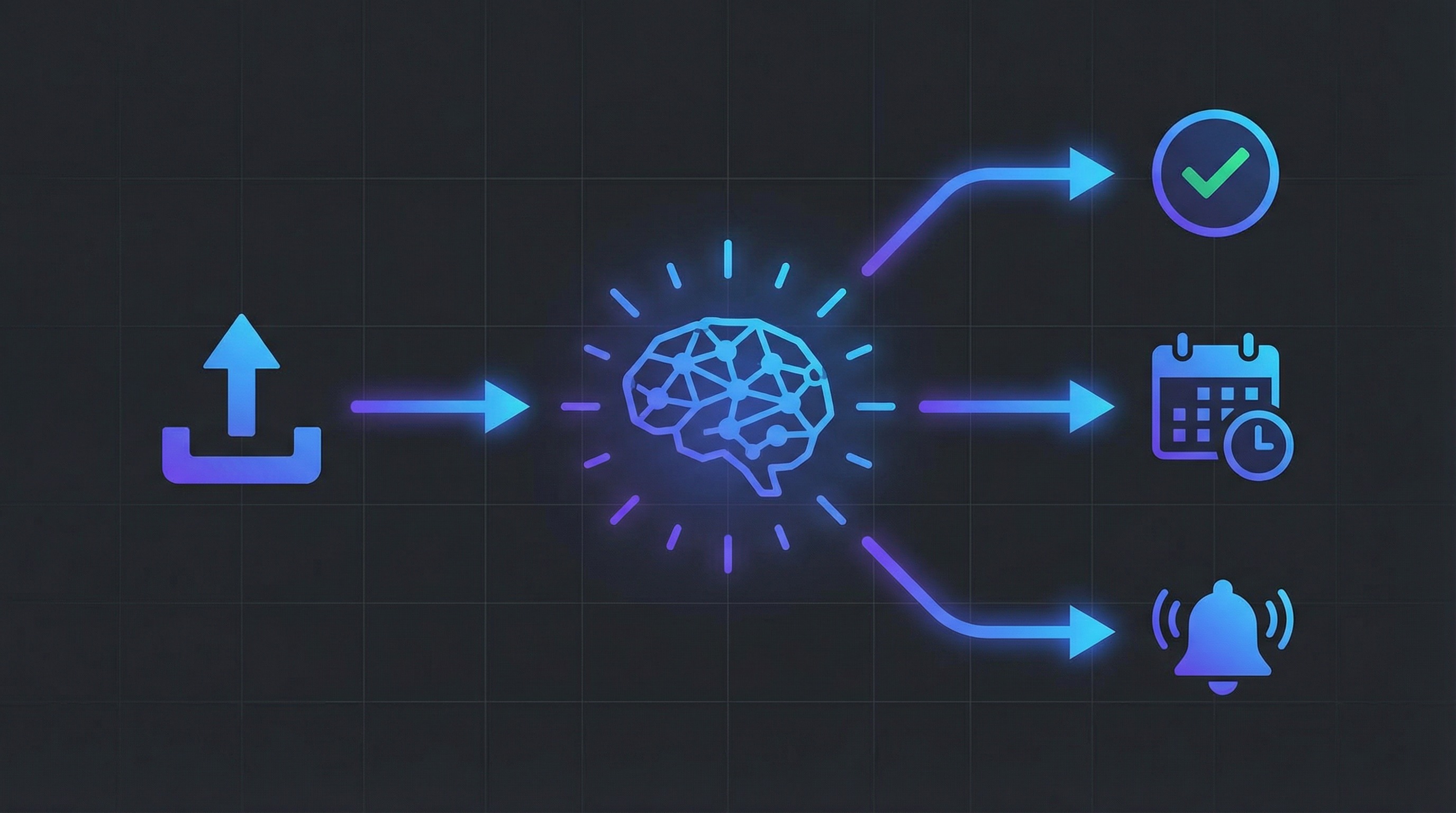
Oppy isn’t just reactive — it can proactively reach out, automate workflows, and trigger actions based on events. This guide covers all the ways to make your Oppy work without you lifting a finger.
Trigger Types Overview
| Trigger | How It Works | Use Case |
|---|---|---|
| CRM Tag | Tag a contact in FUB → Oppy starts conversation | Assign leads to AI |
| Form Submission | Website form → email forwarded to Oppy | Instant lead response |
| QR Code Scan | Person scans QR → sends pre-filled text | Event/marketing capture |
| Website Button | Button click → chat message sent | Contextual engagement |
| Inbound Contact | Someone calls/texts/emails the Oppy | Organic inbound |
| Bulk Outreach | Select contacts → bulk message/call | Campaigns |
| Follow-Up Schedule | AI auto-follows up on non-responses | Nurturing |
| Webhook | External system sends data | CRM integration |
CRM Tag Triggers (Follow Up Boss)
GoGoOppy Tags
The most common trigger for FUB users. Add a tag to any contact in FUB:
Tag format: gogooppy-{oppy-identifier}
Example: gogooppy-youroppy
What happens:
- FUB webhook fires immediately
- Oppy finds or creates the contact
- New conversation created in the specified Oppy’s channel
- Oppy reads up to 3 recent FUB notes for context
- First outreach message sent based on prompt
- Confirmation tag added:
gogooppy-youroppy-active
Watch Tags (More Flexible)
Configure tags in your Oppy’s settings at app.oppy.pro:
Setup: Oppy Settings → Watch Tags → Add tags like hot-lead, follow-up-needed
Advantages:
- Use your existing FUB tag naming conventions
- Multiple Oppies can watch the same tag
- No special naming required
Automation in FUB
Create FUB automations to auto-tag leads:
- New lead from major listing portals → tag
gogooppy-youroppy - Lead status changed to “Contacted - No Response” → tag
follow-up-needed - New lead assigned to team → tag
gogooppy-{team-oppy}
Lead Capture Form Triggers
Email-Based (Works with Any Form Provider)
- Configure your form (JotForm, TypeForm, HubSpot, etc.) to email submissions to your Oppy’s email address
- The Oppy receives the email with all form data
- It creates a contact from the information
- It can immediately call, text, or email the lead
Example flow:
Facebook Ad → Lead Form → Email to jasper@open.oppy.pro →
Oppy creates contact → Oppy calls within 30 seconds
The speed-to-lead advantage is massive. While a human might take hours to respond, the Oppy responds instantly.
Setting Up the Lead Router
For this to work, whitelist the form’s sender email as a Manager on your Oppy. This gives it permission to create contacts and trigger outreach.
In your prompt, add:
When you receive an email from forms@jotform.com containing lead information:
1. Extract the person's name, phone, and email
2. Create a contact
3. Call them immediately
4. If they don't answer, send a text: "Hi [name], this is [Oppy] from [Company].
   I just saw your inquiry and wanted to reach out..."
Website Button Triggers
Contextual Chat Buttons
Add JavaScript buttons to your website that send specific messages:
<!-- On a listing page -->
<button onclick="updateChatWindow('Tell me about the home at 123 Oak Street listed for $750,000')">
  Ask About This Home
</button>

<!-- On a pricing page -->
<button onclick="updateChatWindow('I want to see a demo of the Enterprise plan')">
  Get a Demo
</button>

<!-- On a support page -->
<button onclick="updateChatWindow('I need help setting up my account')">
  Get Help
</button>
What happens: The chat widget opens, sends that message as the user, and the Oppy immediately responds with relevant context. The Oppy can even go browse the page URL to learn more before responding.
Hidden Context Updates
Send background context as users navigate (not visible in chat):
// Silently tell the Oppy what page the user is on
document.addEventListener('DOMContentLoaded', function() {
  updateChatWindow('User is viewing the Enterprise pricing page');
});
QR Code Triggers
SMS QR with Pre-Filled Message
Configure in Share at app.oppy.pro:
- Type a pre-filled message: “Hi Jasper! I attended the March webinar and want the free blueprint”
- Download the QR code
- When scanned, the person’s SMS app opens with the message ready to send
In your prompt, handle this trigger:
If someone's first message mentions "webinar" or "blueprint":
- They came from our marketing campaign
- Share the blueprint link: [URL]
- Then qualify them: What's your role? How big is your team?
- Tag the conversation: webinar-lead
Web Chat QR
Sends visitors to your Oppy’s live page where they can chat instantly:
- URL:
https://app.oppy.pro/s/{embed_key}
Bulk Outreach Triggers
Bulk SMS Campaign
At app.oppy.pro → Contacts:
- Select contacts (or filter and select all)
- Click Send Message
- Choose the Oppy that should handle responses
- Write the initial message (or let AI generate per-contact)
- Set preferred delivery method (SMS, email)
- Send
Each contact gets a personalized message, and any responses are handled by the AI automatically.
Bulk Call Campaign
- Select contacts
- Click Call Contacts
- Choose the Oppy
- Optionally set a custom greeting
- Set delay between calls
- Click Call
You’ll get a CSV download with results. The Oppy handles each call — qualifying, booking, or setting to needs_attention as appropriate.
Example: Example Lending Team fired a high daily outbound calling volume to loan officers. With Oppy, they saw 3X improvement in qualified leads compared to their 5-person human AE team.
Automation Rules
Setting Up Rules
Rules trigger actions when specific events occur:
Via Account Concierge: “When a new account signs up, create a card on the Onboarding board”
Components:
-
Trigger event (e.g.,
account.invite_sent, custom webhook) - Conditions (property matching: equals, contains, regex, etc.)
-
Actions:
-
sync_card→ Create/update board items -
send_notification→ Webhook to external system -
create_list_item→ Add to a board list
-
Proactive Follow-Up Triggers
Time-Based Re-Engagement
In your prompt, instruct the Oppy to handle dormant leads:
If a contact hasn't responded in 30 days but was previously engaged:
- Check if anything has changed (web search their company, check FUB notes)
- Send a relevant, timely follow-up
- Reference something specific from our previous conversation
Event-Based Triggers
If a contact mentioned they'd be ready in X months:
- Note the date in the contact record
- Follow up 2 weeks before that date
- Reference what they told you: "You mentioned you'd be ready around [date]..."
Data-Driven Triggers
The Oppy can search the web before following up:
Before each follow-up, search for:
- Recent home sales near the contact's address
- Market updates for their area
- Any news about their company

Use this context to make the follow-up relevant and valuable.
Needs Attention as a Trigger
When a conversation goes to needs_attention status, multiple things happen:
- Email notification → Sent to all Oppy managers
- Slack notification → If Slack channel email is configured
-
Contact tagging →
needs_attentiontag added to FUB contact - Note creation → Reason documented on the contact
- Board automation → Can trigger creation of a board card (if automation rules configured)
Configuring Who Gets Notified
In the prompt:
When needs_attention triggers:
- For qualified sales leads: email sales@company.com
- For support issues: email support@company.com
- For complaints/escalations: email manager@company.com
Or use the Manager list in Oppy settings for blanket notifications.
The Full Trigger Stack (Example)
Use Case Gallery
Use Case 1: Conference/Trade Show Lead Capture
Setup time: 5 minutes
- Create Oppy or use existing one
- Go to Share > QR Code > Type pre-filled message: “Hi [name], I met you at [event]. Would love to learn more.”
- Download QR code, print on table tents/business cards/slides
- Put it on EVERY slide of your presentation
- Result: Attendees scan, send text, Oppy engages immediately
Why this beats forms: our website Oppy (Oppy’s own AI) is on every business card Alex gives out. When scanned, it pre-fills a text message. By the time the person looks back at their phone, Oppy has already responded. You have their phone number, you’ve started a conversation, and you haven’t had to lift a finger.
Use Case 2: ISA Replacement / Lead Nurturing
Setup time: 30 minutes
- Create Oppy with sales qualification prompt
- Connect Follow Up Boss
- Set up GoGoOppy tag in FUB automation
- Enable follow-up (3-day fixed, respect business hours)
- Add Slack channel for notifications
- Result: Every new lead gets instant AI outreach + persistent follow-up
Use Case 3: Website Support Bot
Setup time: 20 minutes
- Create Oppy with support/triage prompt
- Add knowledge base from help documentation URL
- Embed widget on website
- Configure needs_attention to email support team
- Result: 24/7 support that answers most questions from docs, escalates the rest
Use Case 4: Webinar/Event Follow-Up Machine
Setup time: 15 minutes
- Create (or clone) Oppy with event-specific prompt
- Import registrant list (CSV or FUB sync)
- Send bulk SMS: “Thanks for registering! Here’s your free resource: [link]”
- Enable follow-up for non-responders
- Result: AI personalizes follow-up based on whether they attended, what they asked about
Use Case 5: Multi-Source Lead Router
Setup time: 45 minutes
- Create a “traffic controller” Oppy
- Whitelist form emails (Facebook, major listing portals, your website) as managers
- Prompt: “When you receive a lead, determine their source and route to the appropriate Oppy”
- Create specialized Oppies for each source/segment
- Result: Leads from different sources get tailored AI conversations
Here’s how everything works together for a real estate brokerage:
- Facebook ad → Lead fills out form
- Form email → Forwarded to Oppy email → Contact created
- Oppy calls immediately → Reaches the lead within 60 seconds
- If no answer → Sends SMS: “Hey, I just tried calling about your inquiry…”
- Auto follow-up → AI sends personalized messages every 2-3 days
- Lead responds → AI qualifies them through conversation
- Lead is qualified → Needs_attention triggered → Team notified via Slack
-
Tag applied to FUB →
needs_attentionappears on the FUB contact - ISA picks up → Reviews transcript, calls the lead back
- Conversation continues → All tracked in one place